Teams: Agent Chaining Anyone Can Use
Designing how people at Agile Defense build, run and schedule chains of AI agents.
- 1,000+ employees with access to Teams
- Used for proposals, white papers and red teaming
Overview
| Company | Agile Defense, a government contractor serving federal agencies |
|---|---|
| Role | Main designer on Teams |
| Team | Lead engineer, 3 engineers, PM |
| Timeline | 2024–2026 |
| Platform | Workforce, the company’s internal AI agent platform |
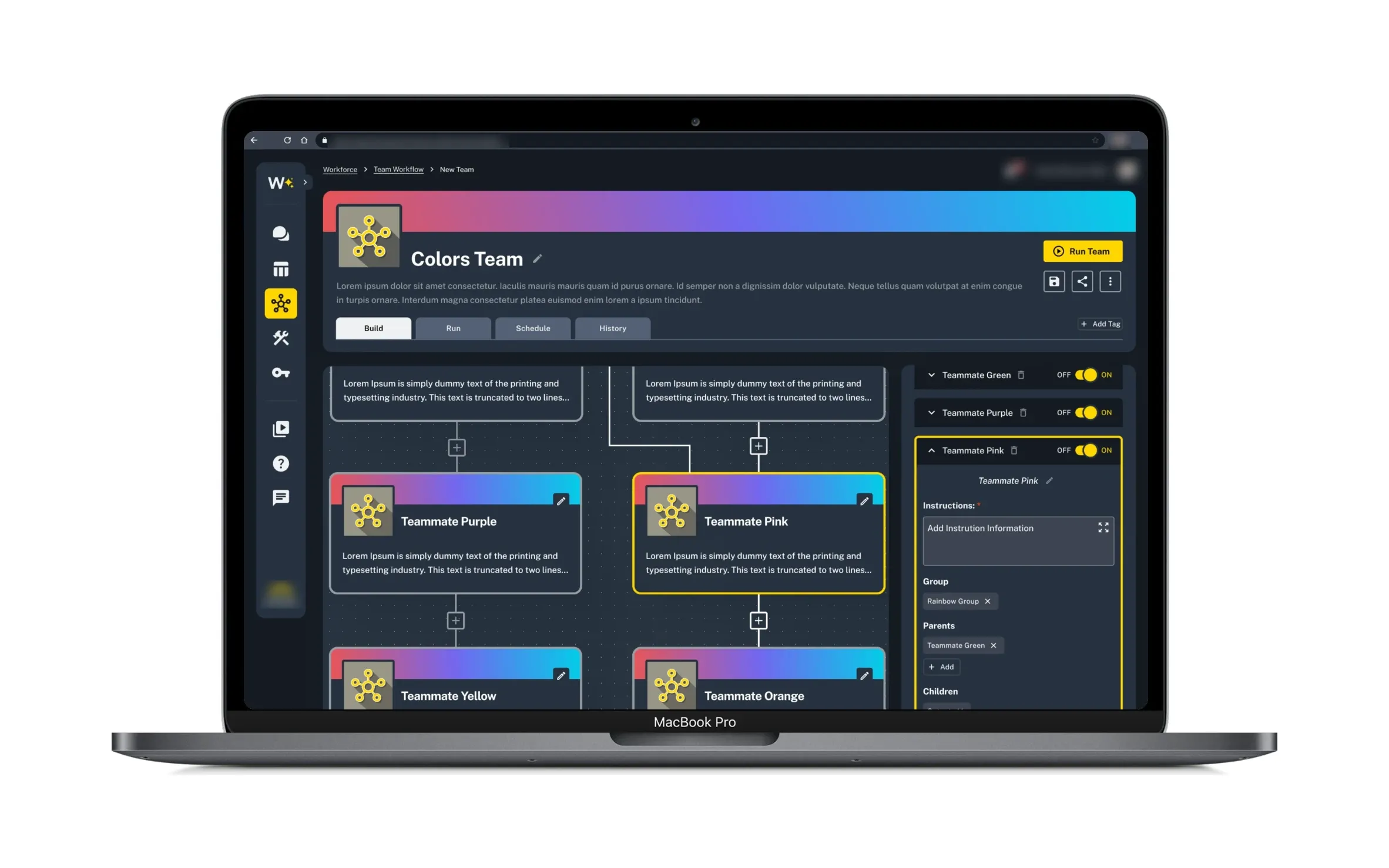
After the Workforce redesign, Teams was the next big project. A team is a group of AI teammates chained together, so one teammate’s work feeds into the next. I was the main designer, working on how people build a team, run it, schedule it and look back at past runs.
The Problem
The company was pushing people to use AI for long, complicated work like proposals, white papers and red teaming. Teams was always the end goal for Workforce, since that’s how this kind of work would get done. Stakeholders actually wanted to start with Teams, but we started with the Playground and the redesign instead.
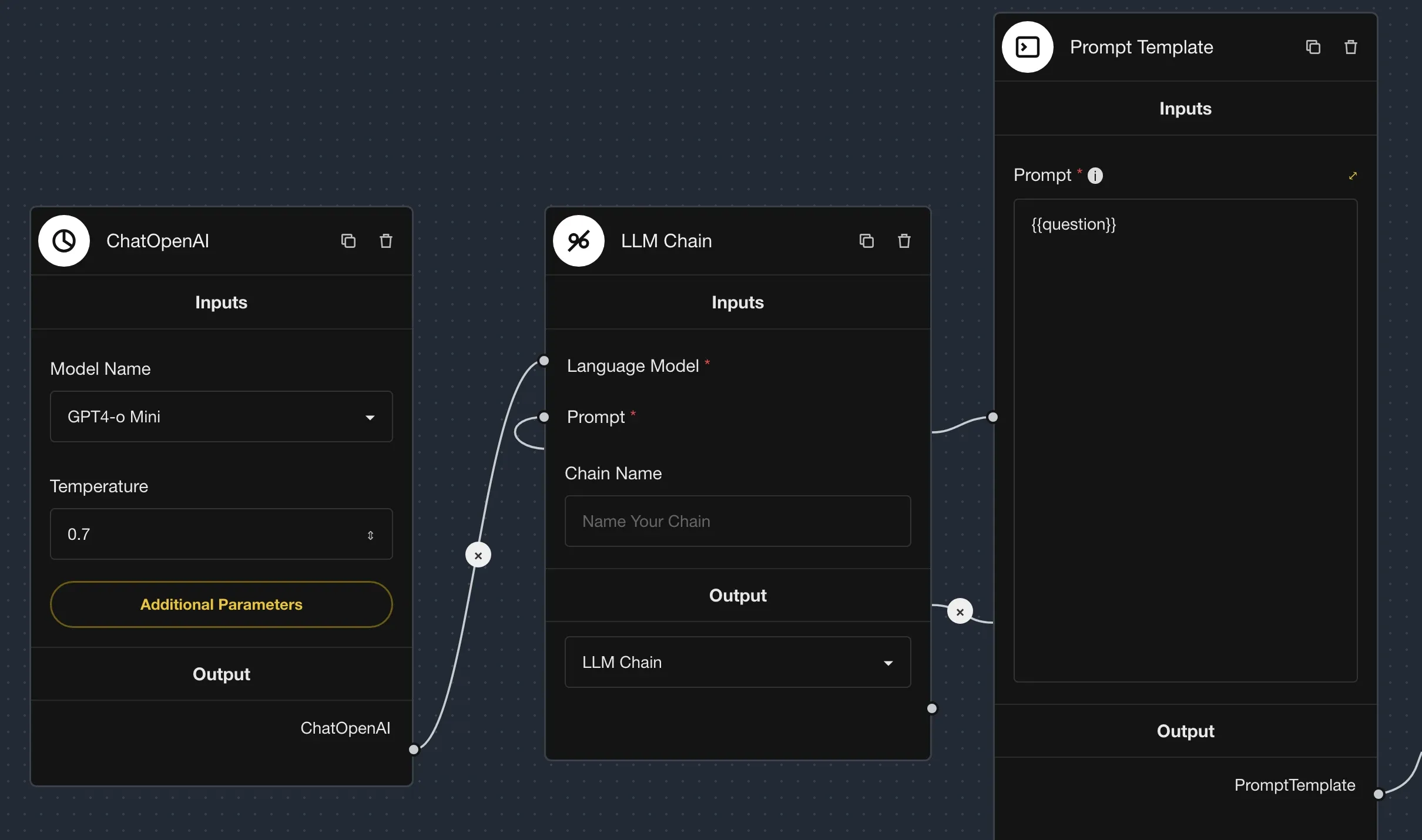
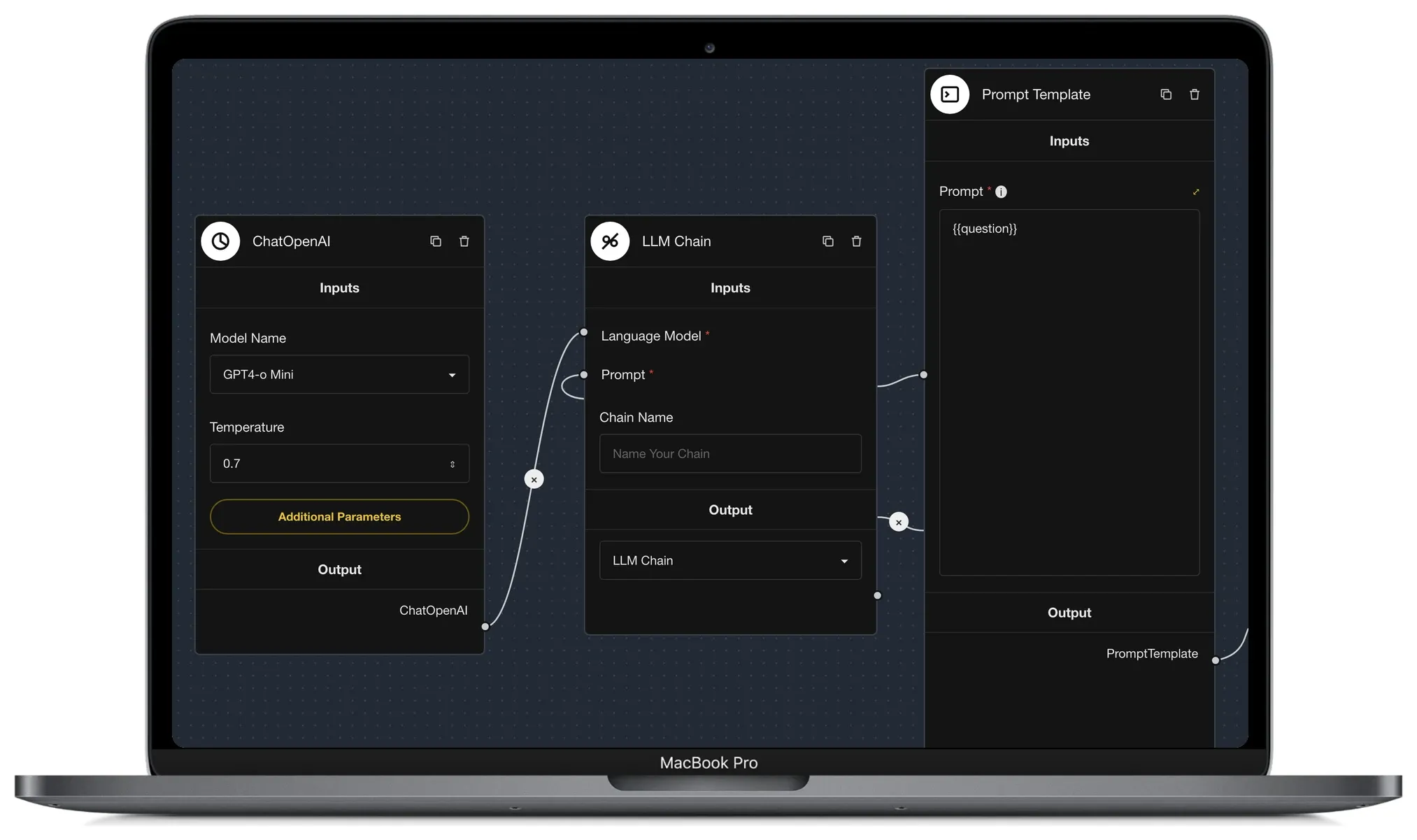
By the time we got to Teams, what existed was a node-based sandbox the engineers had built. Each box was a technical piece, like buffer memory, LLM chains and embeddings, and looking at a team you couldn’t really tell what it was meant to do. Technical users could figure it out, but most of the company isn’t technical, and those were the people we needed using it.
Users
| User | What they need |
|---|---|
| Non-technical employees | Set up a team for work like proposals or white papers without knowing how agent chaining works under the hood. |
| Technical users | Keep the control they already had in the node version. |
| People running a team someone else built | Run it, see where it’s at, and approve steps before it moves on. |
Discovery
Agent chaining was more technical than anything I’d designed before, so I learned it by using it. I asked the Workforce Playground what triggers, skills and chaining meant, and figured out a lot through trial and error. That gave me a simple test for every screen. Most of the company isn’t technical, and neither was I when I started. If I could look at a screen and know how to use it, it was ready to show the team.
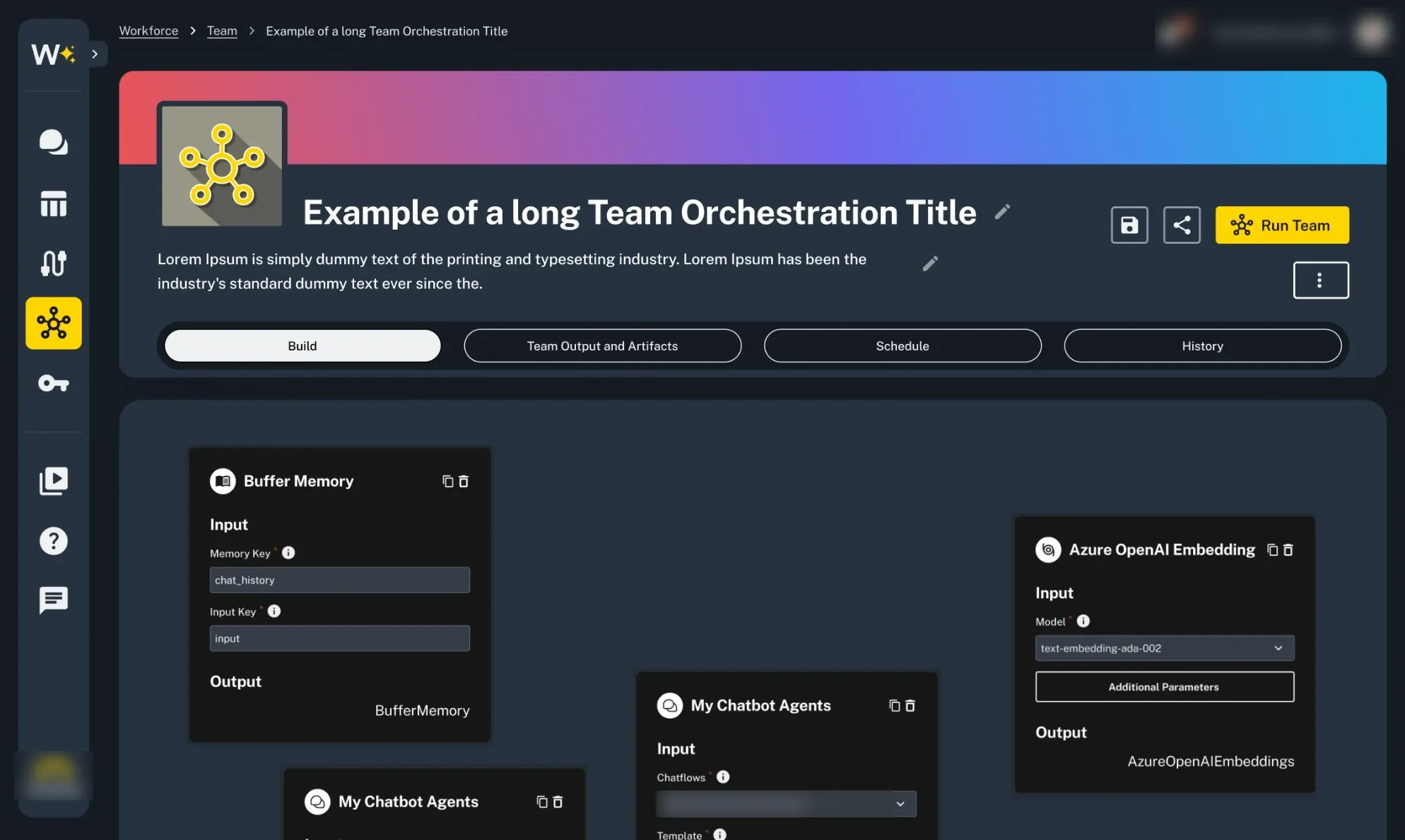
First I wanted to see if the existing nodes could just move into the redesigned Workforce UI. My first draft cleaned them up and added tabs for build, team output and artifacts, schedule and history. It looked cleaner, but it didn’t pass my own test. Cleaner nodes were still nodes, and someone who isn’t technical still wouldn’t know what they were looking at.
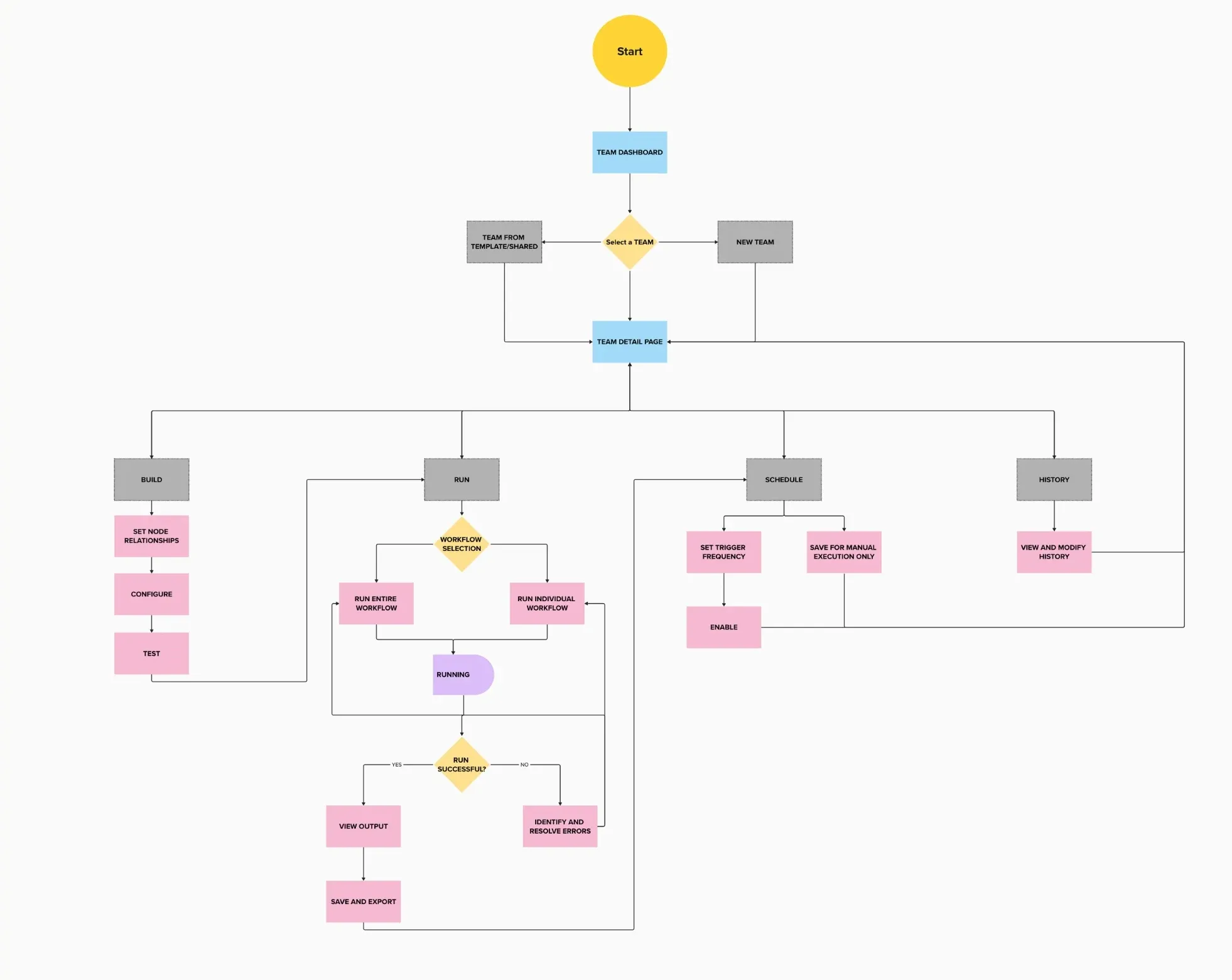
So I stepped back from the screens. The engineers and I mapped the user flow together on a call. They knew how it worked under the hood, and I knew where people who aren’t technical would get lost. That helped us break the work into four parts: build, run, schedule and history.
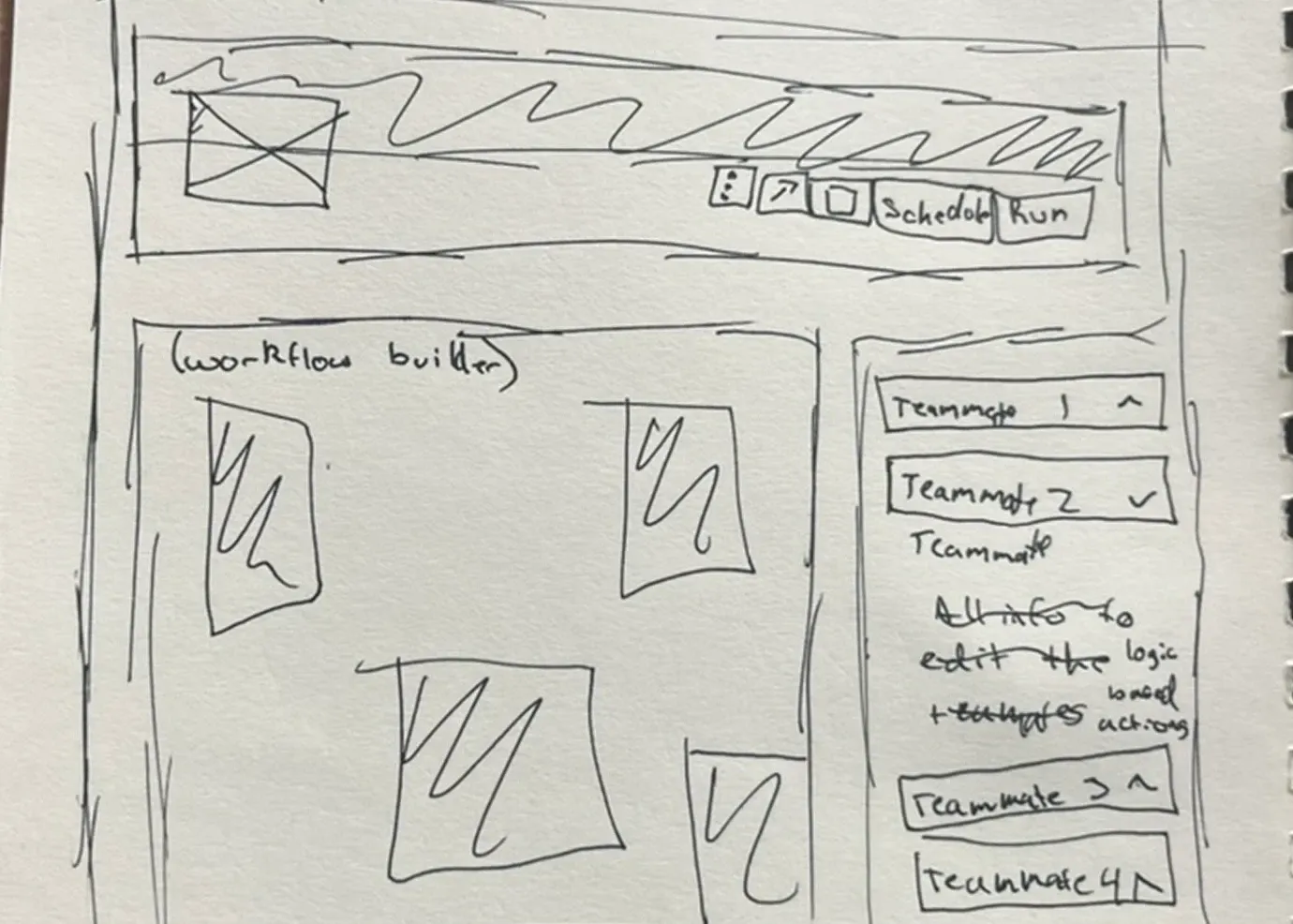
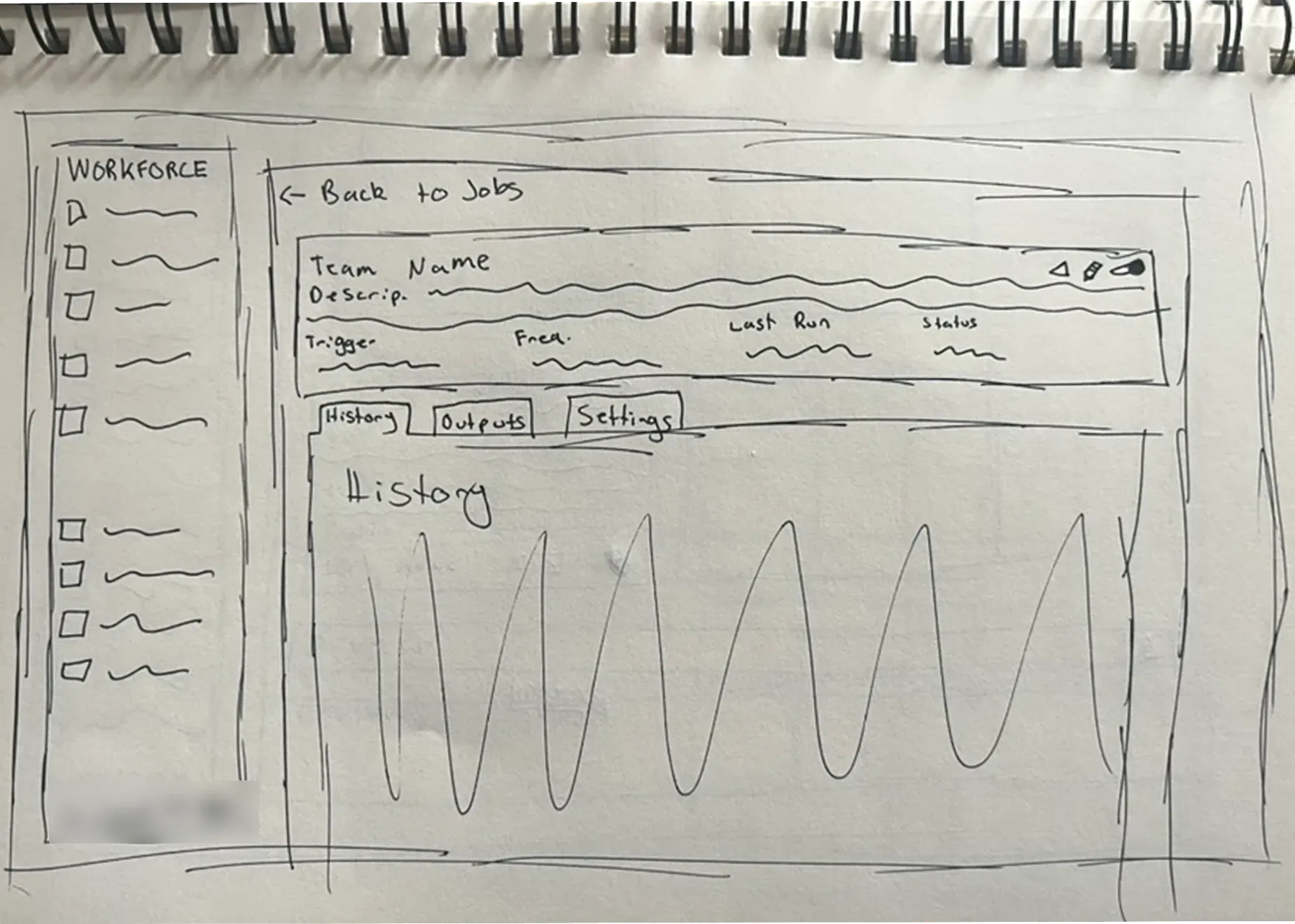
Then I went back to paper and sketched the main screens. A lot of questions came up along the way, like where scheduling should live and how teammates should be grouped. After that, I reworked the screens a lot to make them easier for people who aren’t technical.
My Teams
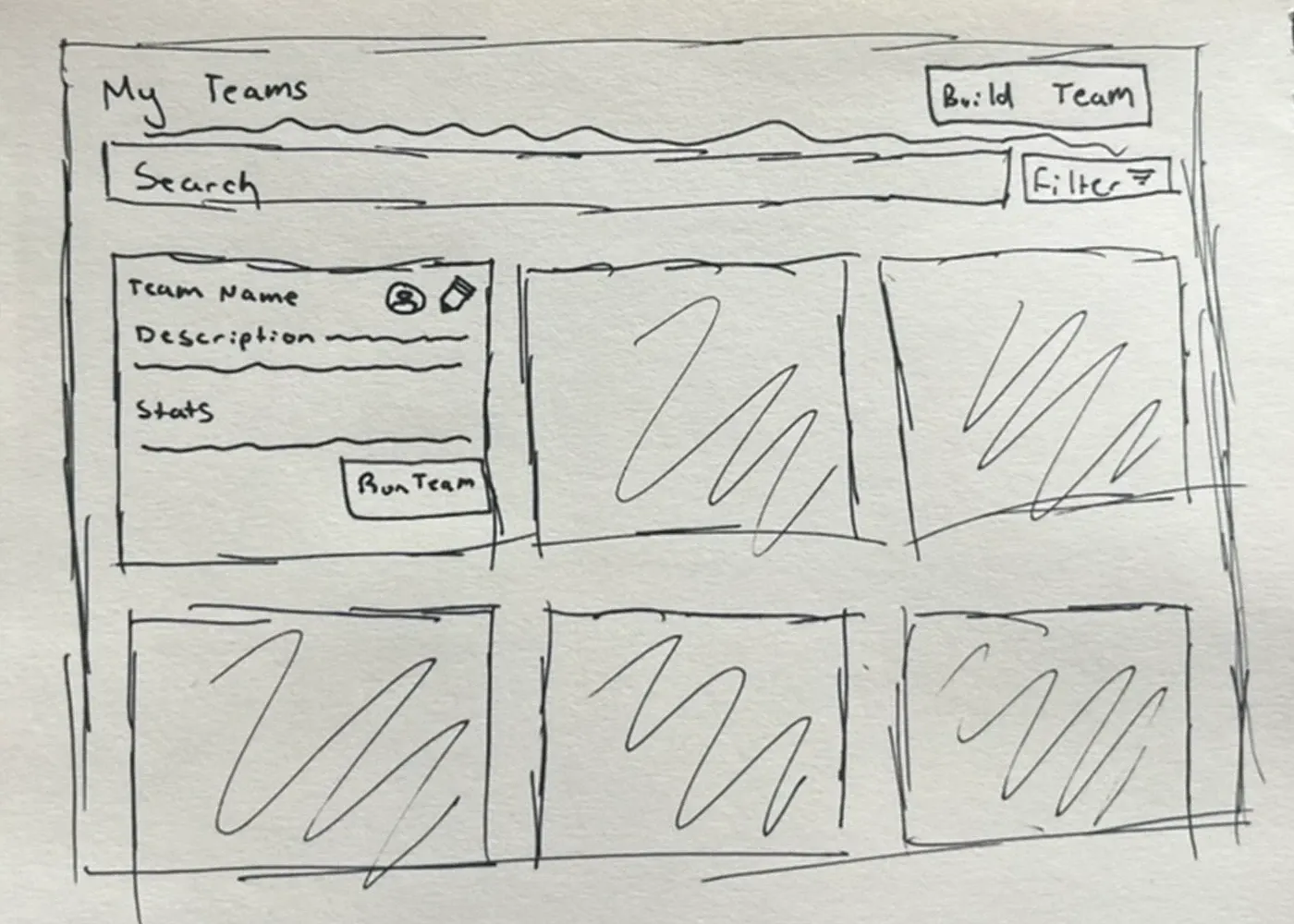
Team builder
Team details
Before
After
Key Decisions
1. A canvas and a side panel that both work
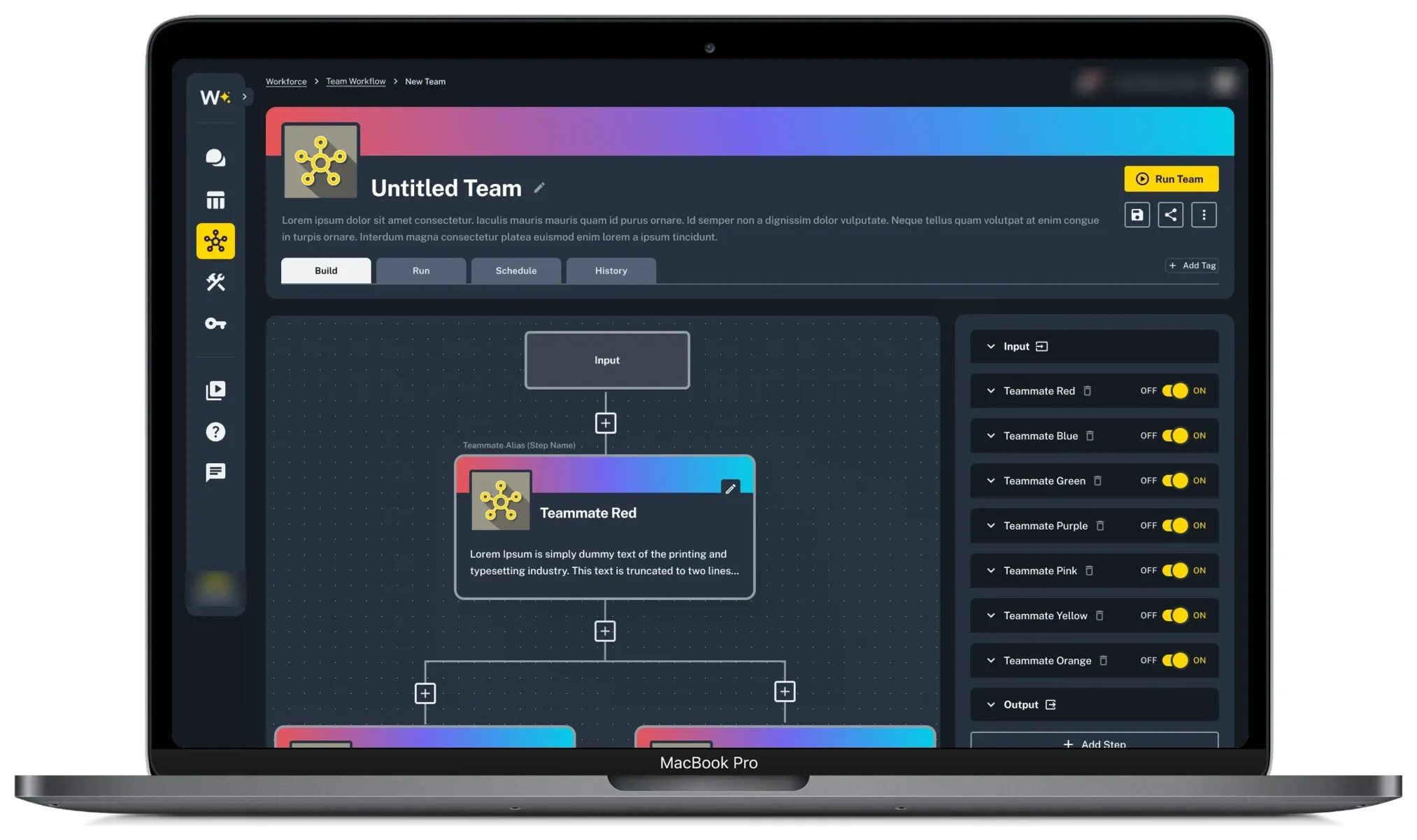
The final builder is about two-thirds canvas and one-third settings panel, and each one has a different job. The canvas shows the big picture. You can see every teammate and how they work together, so you can tell what a team does at a glance. The panel is where you zoom in on one teammate and set its instructions, group, parents and children, variables, approval and a test chat. You can set up a team in either place, and both stay in sync.
2. Teammates as single blocks, with clear connections
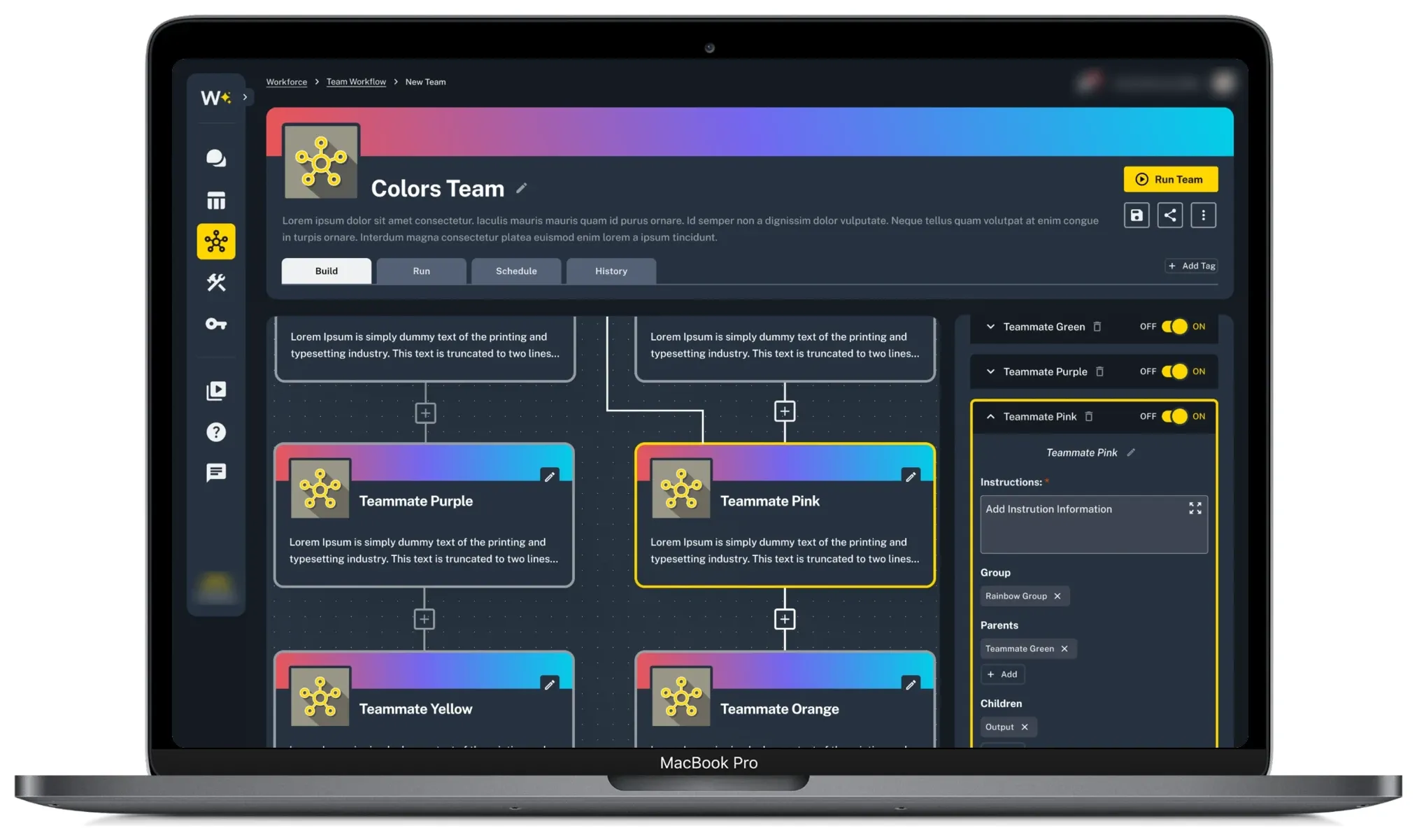
In the node version, there wasn’t really a teammate. You built one out of separate nodes for the prompt template, the LLM, the temperature and so on. That was confusing, and it didn’t fit the new Workforce, where you build a teammate on its own page. So in Teams, each teammate you’ve already built shows up as one block on the canvas.
It was also hard to see what fed into what. I added groups and a clear parent and child relationship, so you can look at a team and see the order things happen in.
The tradeoff was a learning curve for technical users, who were used to building everything on the canvas. Most of them moved their detailed work into the panel, and now I see people across the company using Teams really well.
3. Checking a step before the whole team runs
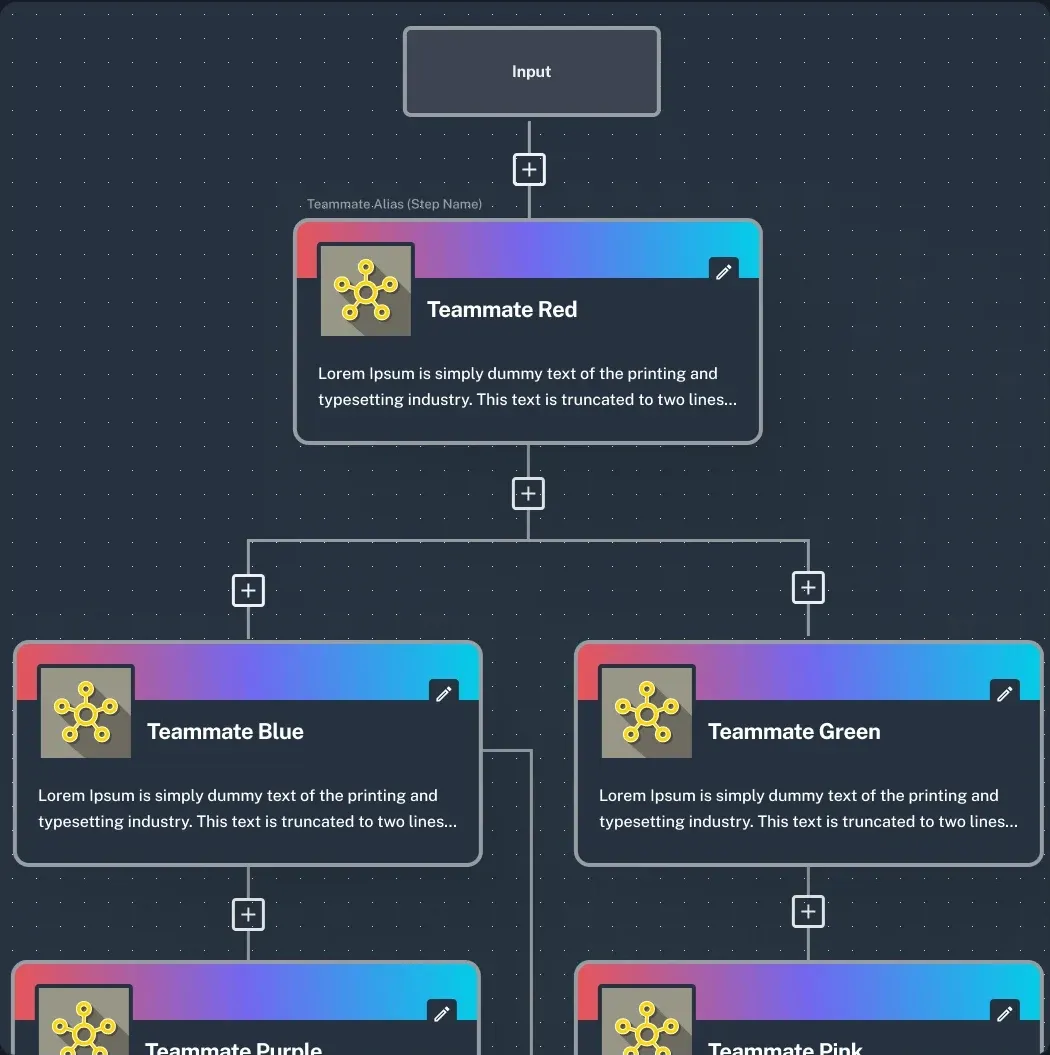
AI isn’t always consistent, so people needed a way to check its work along the way. I added a “requires user approval” checkbox to each step. When it’s on, the team stops at that step so the person can make sure the output is accurate, or flag changes, before the rest of the team runs.
I put it on each step instead of on the whole team because steps vary a lot. One step might do something complex or subjective that’s worth checking, and the next might be simple enough to trust. Pausing does slow a run down, but only while it waits on the person. That’s worth it to catch a bad output before the rest of the team builds on it.
In the run view, each step shows its status, and steps waiting on approval are marked so you know where to look.
4. Scheduling and history built into every team
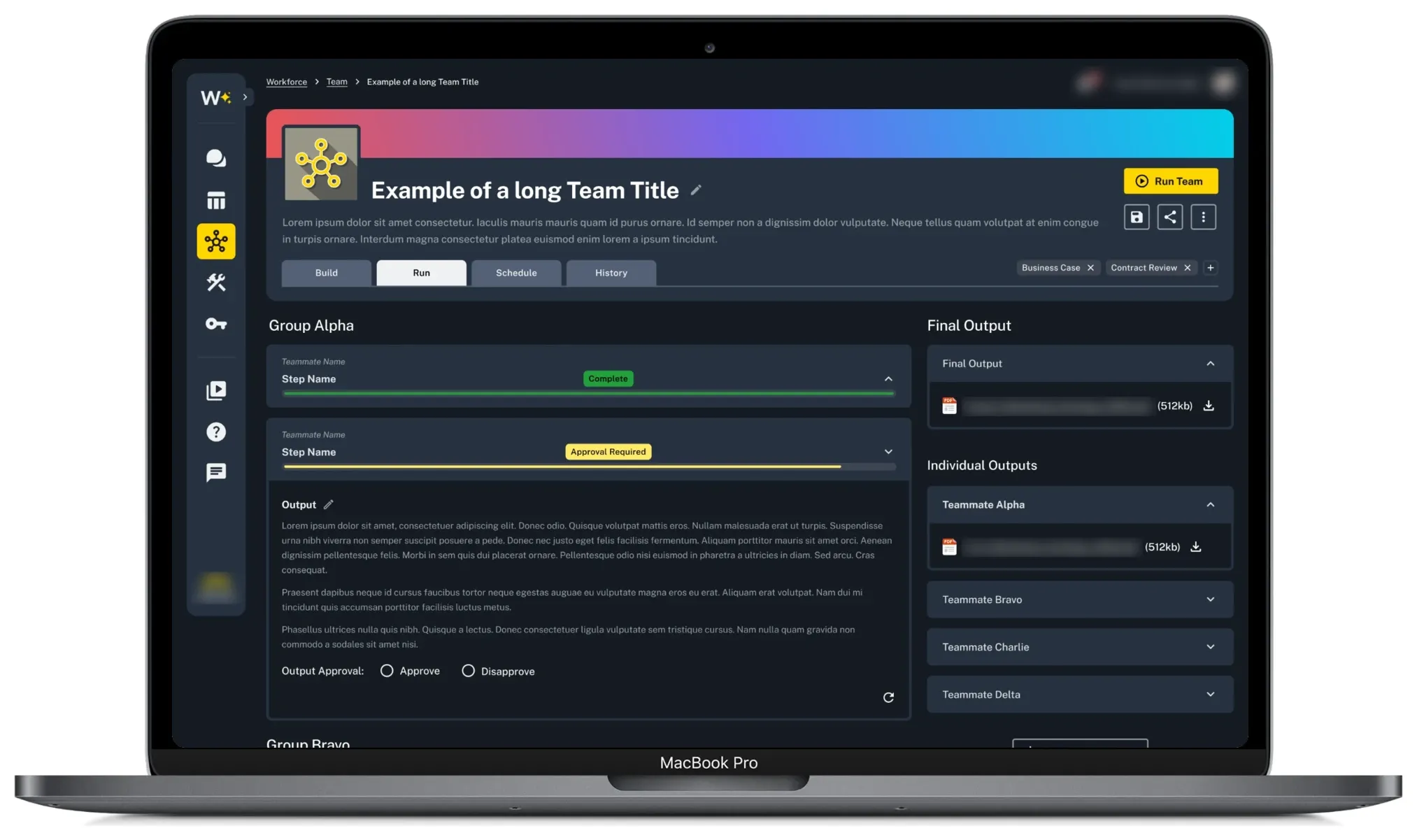
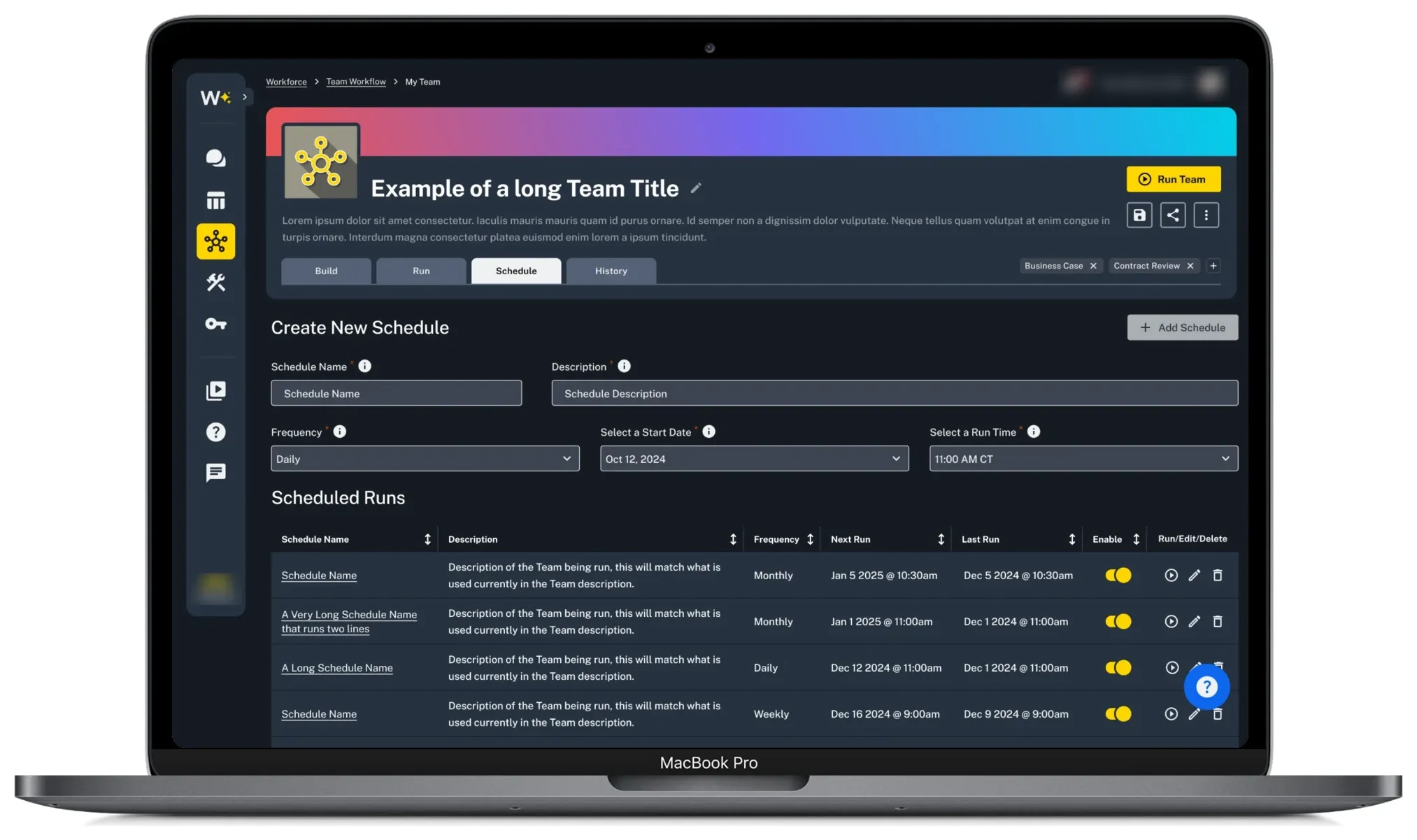
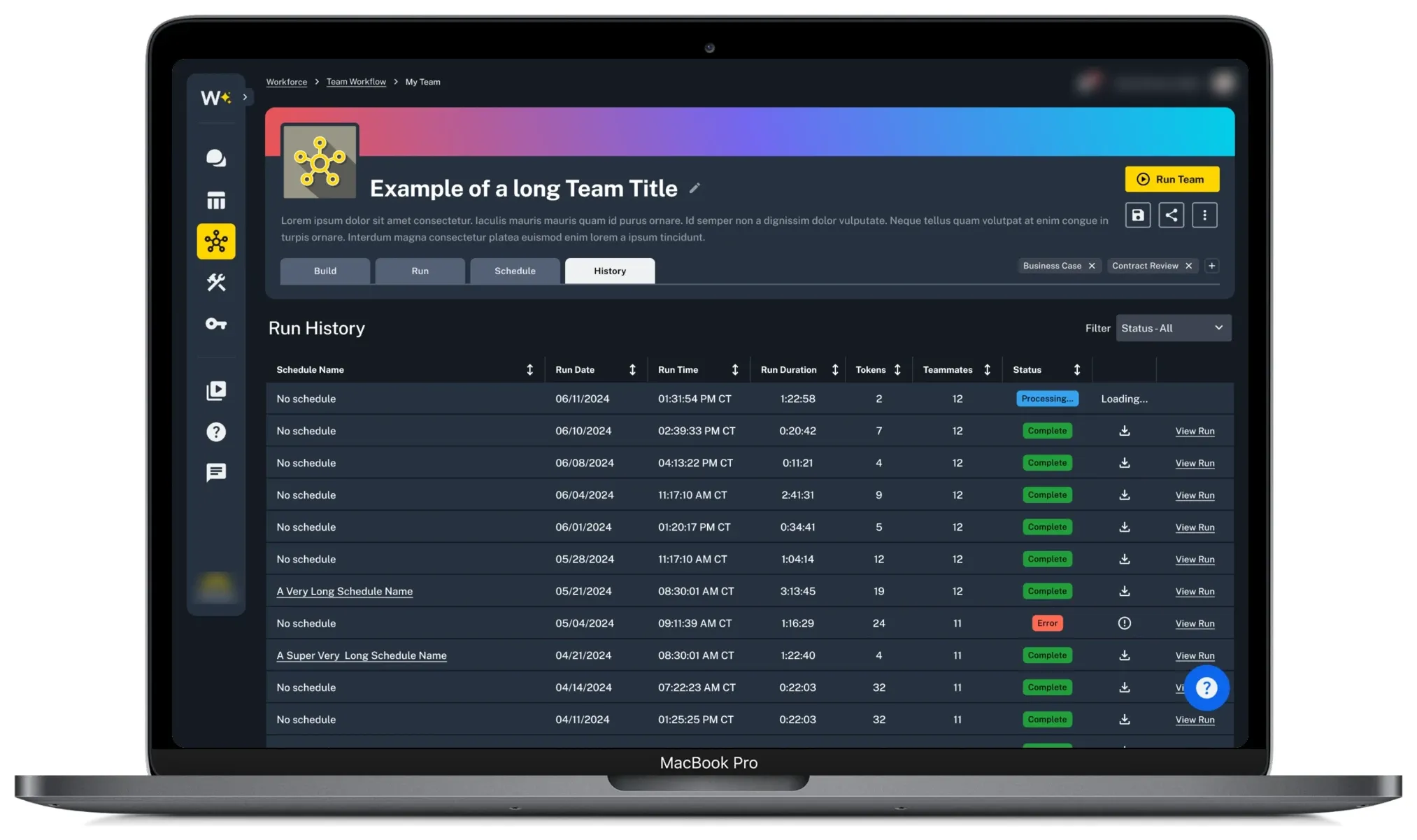
A lot of the work people use Teams for repeats. Once someone set up a team, they shouldn’t have to rebuild it or start it by hand each time. So scheduling and history were part of the plan from the first user flow. Every team has its own Schedule and History tabs, next to Build and Run.
On the Schedule tab, people set a team to run daily, weekly or monthly, and turn each schedule on or off. On the History tab, they can check every past run, see its status and download what it made.
Results
Teams shipped and is available to the company’s 1,000+ employees. Before Teams, most of them couldn’t build a team at all, because the node version only worked if you were technical. Now people use it for proposals, white papers and red teaming. Since launch, I’ve talked with people who didn’t know I designed it, and they’ve told me it speeds up their work and has a lot of potential. For handoff, I wrote dev notes on each page covering interactions and edge cases.
Reflection
- Learn it before designing it: I was designing and learning at the same time. A few times I thought I understood how something worked, designed it, then found out I didn’t and had to go back and change it. Next time I’d take time up front just to learn how agent chaining works.
- Test with real users: We didn’t have the chance to run user testing, so my feedback came from other designers. Next time I’d push for even a few sessions with non-technical employees before launch.
- Plan how to measure it before launch: Next time I’d work with the team to track how people use Teams from day one, so we could see where they get stuck and what to fix next.
- Trust from the last project helped: After the Workforce redesign, the engineers trusted me to run with this one. We spent less time debating and more time on the actual problems.